WebRTC leak in Chrome: how to test and fix it when you use a proxy
By the AxioAPI team · Published
A WebRTC leak happens when a web page uses WebRTC to learn your real IP address even though your browser traffic goes through a proxy. A proxy hides the address in normal page requests, but WebRTC can open its own UDP connection that skips an HTTP proxy. You can test for it in about a minute and, in Chrome, limit it with the WebRTC IP handling policy.

What WebRTC is and why it leaks
WebRTC is the browser technology behind video calls and peer-to-peer features. To connect two browsers it asks a STUN server which public address you appear to have, and it also lists your local network addresses. Pages can read that list with a few lines of JavaScript.
Normal page requests use HTTP or HTTPS and follow your proxy. The WebRTC check uses UDP, and an HTTP proxy does not carry UDP, so the request can leave your connection directly and reveal your real public address.
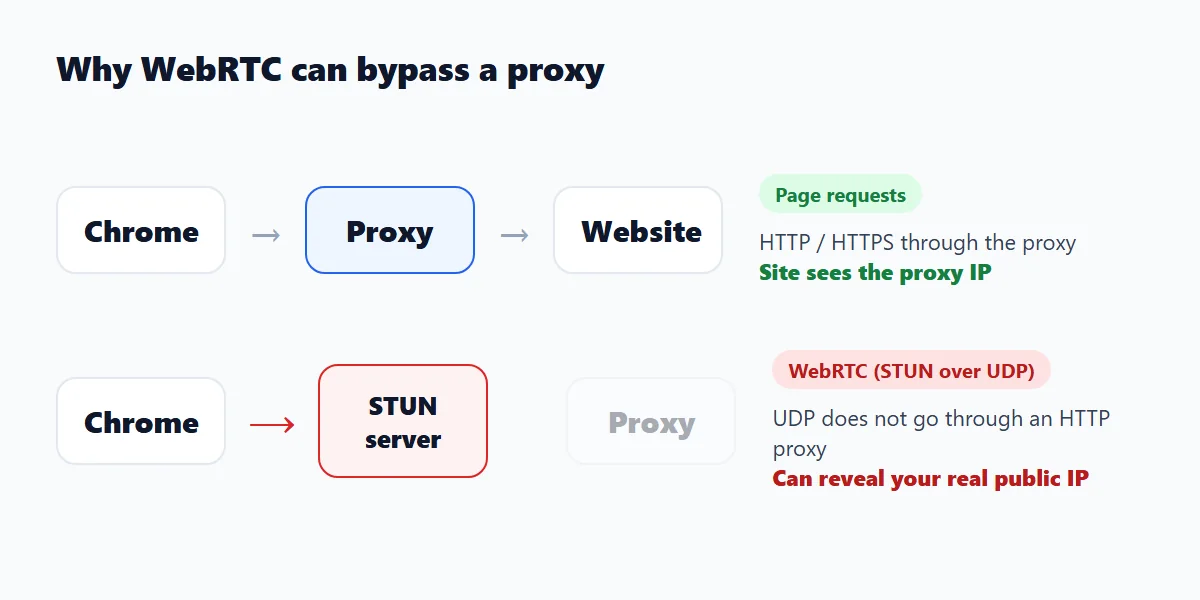
Why a WebRTC leak matters
If a page learns your real public address, it can estimate your internet provider and approximate location, and it can link your sessions even when you changed the address in normal requests. That defeats the reason many people use a proxy: location testing, price checks or keeping accounts apart.
How serious it is depends on your goal. For a casual location check it may not matter; for work that depends on the site seeing only the proxy address, it does.
ICE candidates in plain words
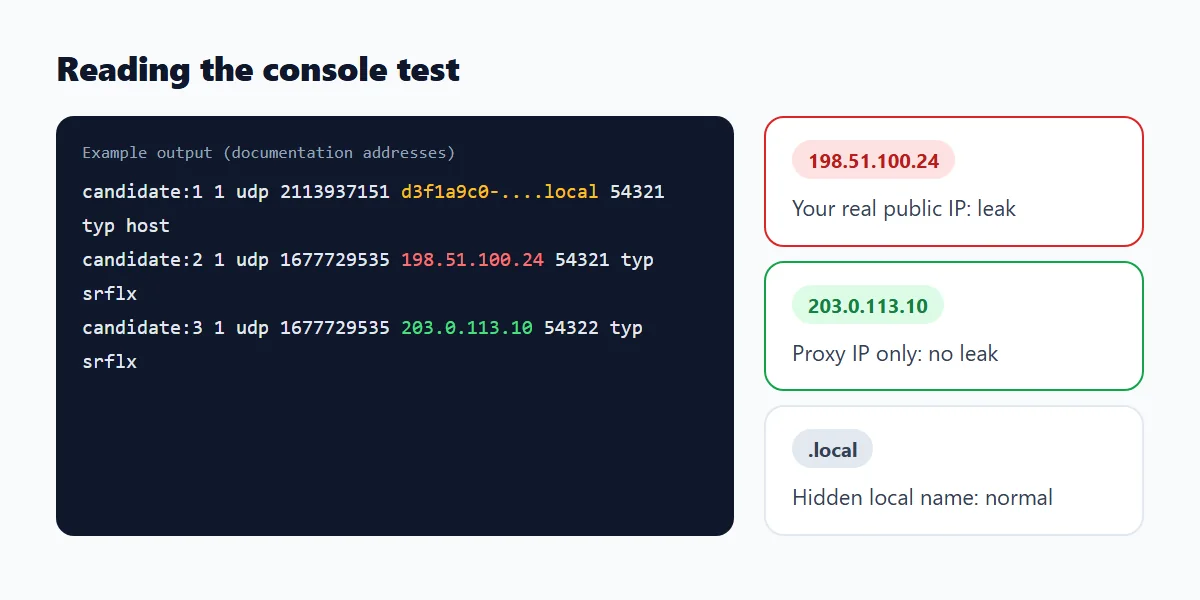
When a page starts a WebRTC connection, the browser gathers candidates, which are the addresses it could be reached on. A host candidate is a local network address. A srflx candidate is the public address a STUN server saw. A relay candidate is the address of a TURN relay that passes the traffic for you. A leak test is simply a list of these candidates, and only the srflx and host lines can show your real network.
How to test for a WebRTC leak
First note your real public IP with the proxy off. Then connect the proxy, open any page, press F12, paste the script below in the Console and read the lines it prints. Dedicated test pages such as BrowserLeaks and IPLeak.net do the same check with a nicer display.
// Paste in the DevTools console (F12) of any page, then read the candidates it prints.
const pc = new RTCPeerConnection({ iceServers: [{ urls: 'stun:stun.l.google.com:19302' }] });
pc.createDataChannel('');
pc.onicecandidate = (event) => {
  if (event.candidate) console.log(event.candidate.candidate);
};
pc.createOffer().then((offer) => pc.setLocalDescription(offer));
How to read the result
- A line with typ srflx contains a public address. If it is your real IP while the proxy is connected, you have a leak.
- If every public address is the proxy address, or none appears, there is no leak in this test.
- A line with typ host and a random name ending in .local is a local address that Chrome hides on purpose; it is normal.
Common mistakes when testing
- Testing with the proxy off. Always compare with and without it, and note your real address first.
- Testing in a different window. Extensions do not run in Incognito unless you allow them, so repeat the test in the window you actually use.
- Testing one browser only. WebRTC is a browser feature, so test every browser you use, and mobile Chrome separately.
- Reading a local address as a leak. A random name ending in .local is Chrome hiding a local address, not a public IP.
How to stop WebRTC leaks in Chrome
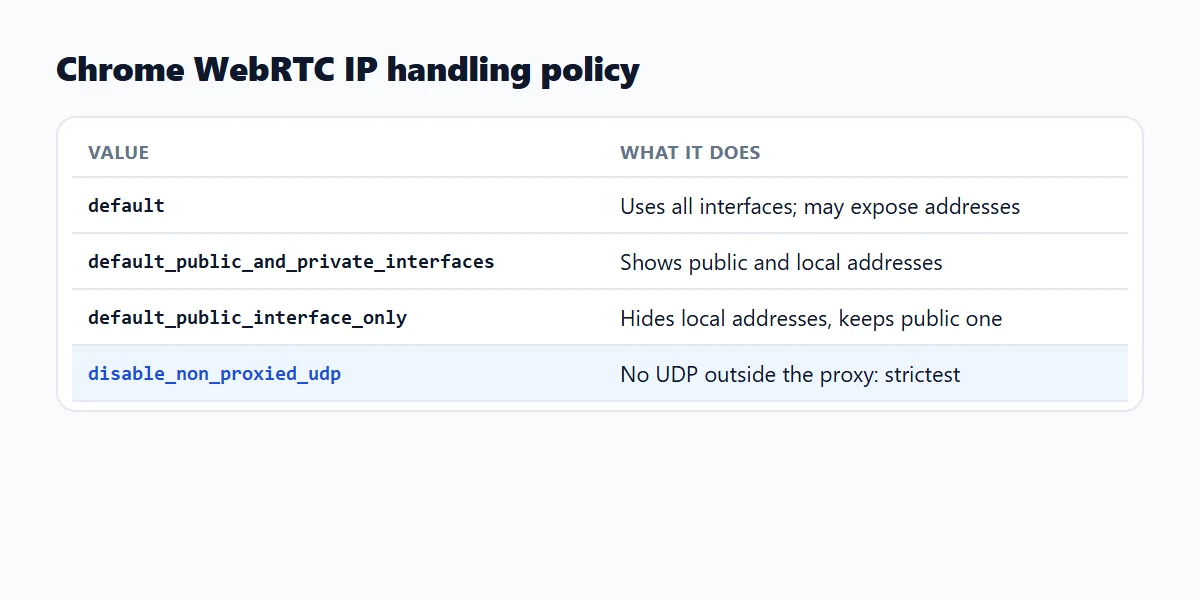
Chrome has no setting that turns WebRTC off. You have two options: an extension that limits WebRTC, or Chrome's WebRTC IP handling policy, which extensions with the privacy permission can set. Google's WebRTC Network Limiter and the WebRTC Control extension are examples of the first kind.
The policy has four values. The strictest, disable_non_proxied_udp, lets WebRTC use UDP only through a proxy that supports UDP and otherwise falls back to TCP, so it cannot go around the proxy.
Step by step: limit WebRTC leaks with an extension
- Install a WebRTC-limiting extension from the Chrome Web Store and check the publisher and requested permissions first.
- Pick the proxy-aware option if it has one. In Google's WebRTC Network Limiter, the option to use your proxy server keeps WebRTC from bypassing it.
- Reconnect the proxy, reload the test page and run the console script again.
- Confirm that only the proxy address appears. If your real address is still listed, another extension or setting is overriding the policy.
WebRTC leak and DNS leak are different problems
A WebRTC leak exposes your IP address through the browser's peer-to-peer feature. A DNS leak sends your domain lookups outside the proxy. A clean WebRTC test says nothing about DNS, so check them separately.
What Axio Proxy does about it
While it is connected, Axio Proxy sets the policy to disable_non_proxied_udp, and it clears the policy when you disconnect. Treat this as a measure that limits leaks, not a guarantee, and run the test above after connecting. If another extension also sets the WebRTC policy, keep only one.
Firefox and Edge
Firefox has a switch: open about:config, search for media.peerconnection.enabled and set it to false. In Edge, open edge://flags, find "Anonymize local IPs exposed by WebRTC", enable it and restart.
What you give up when you block WebRTC
- Browser video calls, screen sharing and some collaboration tools may stop working or fall back to a relay.
- Disconnect the proxy, or disable the extension, before a call.
- It protects Chrome only; other apps keep their own network settings.
Frequently asked questions
What is a WebRTC leak?
It is when a website uses WebRTC to read your real IP address even though your traffic goes through a proxy or VPN.
Does WebRTC leak your IP?
It can. WebRTC asks a STUN server for your public address and lists local addresses, and that request can bypass an HTTP proxy.
How do I check if WebRTC is leaking?
Note your real IP with the proxy off, connect the proxy, then run a WebRTC test or the console script in this guide. If your real public IP appears, it is leaking.
How do I turn off WebRTC in Chrome?
Chrome has no built-in switch. Use an extension such as WebRTC Network Limiter or WebRTC Control, or one that sets the disable_non_proxied_udp policy while a proxy is connected.
Is disabling WebRTC good?
It protects your address but can break video calls and screen sharing. Block it while you work behind a proxy and allow it again for calls.
Does a proxy stop WebRTC leaks?
Not by itself. An HTTP proxy does not carry the UDP traffic that WebRTC uses, so you also need the policy or an extension that limits WebRTC.
Sources
- Chrome Extensions API: privacy
- So your VPN is leaking because of Chrome's WebRTC (webrtcHacks)
- WebRTC leaks: a complete guide (Security.org)
Related guides
- How to set up a proxy in Chrome (Windows, macOS, Linux and ChromeOS)System settings, a launch flag or an extension: the steps for each, how to check the IP and how to fix proxy errors.
- SwitchyOmega alternatives for Chrome: ZeroOmega, FoxyProxy and moreRules and your own proxies, or one-click locations from an account: how to choose, with a PAC example.
- Sticky vs rotating proxy: which one to useWhen to keep one IP and when to change it, with a session lifecycle you can script.