How to set up a proxy in Chrome (Windows, macOS, Linux and ChromeOS)
By the AxioAPI team · Published
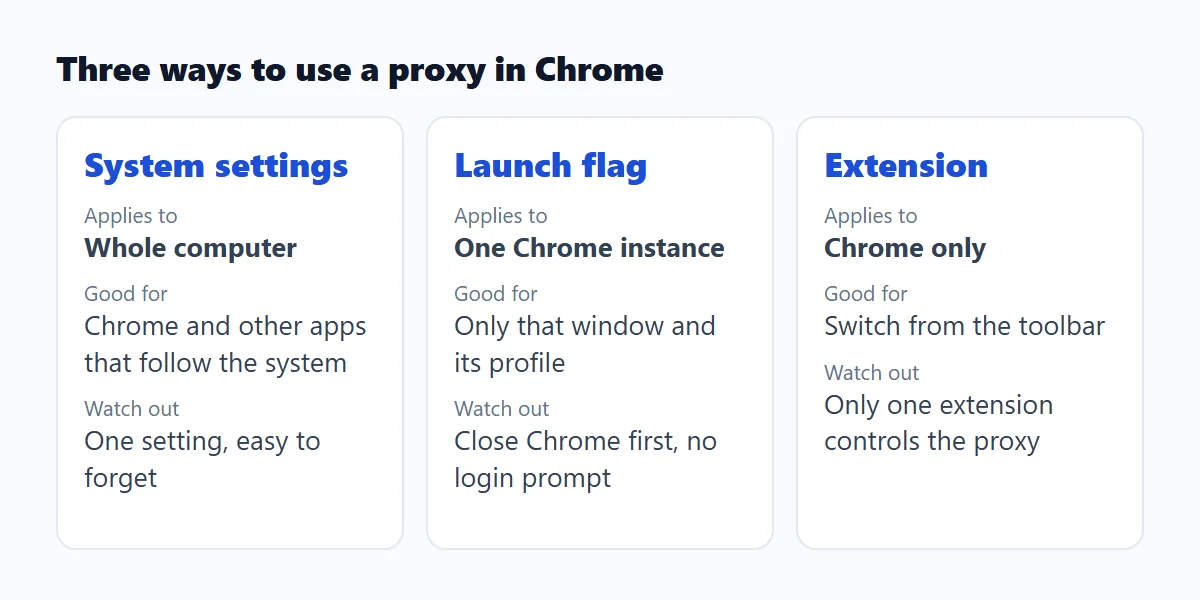
To set up a proxy in Chrome, use one of three methods: your computer's system proxy settings (Chrome opens them from Settings, System), the --proxy-server launch flag for a single Chrome instance, or a proxy extension that changes the proxy for Chrome only. Pick by scope: the system setting affects the whole computer, the flag and the extension affect only Chrome.

The three ways to use a proxy in Chrome
Chrome on Windows, macOS and Linux has no proxy form of its own. It follows the operating system unless you start it with a flag or install an extension that takes control. That is why every guide ends up describing the same three options.
| Method | Applies to | Best for | Limit |
|---|---|---|---|
| System settings | The whole computer | One proxy for Chrome and other apps | Easy to forget to switch off |
| Launch flag | One Chrome instance | A separate test window | Close Chrome first; no login prompt in the flag |
| Extension | Chrome only | Switching from the toolbar | Only one extension controls the proxy |
What you need before you start
Get four details from your proxy provider: the host, the port, the protocol (HTTP, HTTPS or SOCKS5) and, if the proxy needs one, a username and password. Examples in this guide use the placeholder 203.0.113.10:8080, which is not a real proxy.
One Chrome limit matters here: Chrome's built-in settings do not support a SOCKS5 proxy that requires a login. If your proxy uses SOCKS5 with a username and password, choose an HTTP or HTTPS endpoint, or use an extension that handles it. Never use a free public proxy for accounts or payments: its operator can see which sites you visit.
HTTP, HTTPS or SOCKS5: which protocol to choose
An HTTP proxy forwards web requests. For HTTPS sites Chrome asks the proxy to open a tunnel, and the page content stays encrypted between Chrome and the site, so the proxy sees the host name but not the page. An HTTPS proxy is the same thing with an encrypted connection to the proxy itself. SOCKS5 is a more general relay that passes any TCP connection without interpreting it.
In practice: use HTTP or HTTPS when the proxy needs a username and password, because Chrome shows a login prompt for it. Use SOCKS5 only when it has no login. For a local SOCKS5 proxy write socks5://host:port in the flag or in the settings page.
Option 1: set the proxy in your system settings
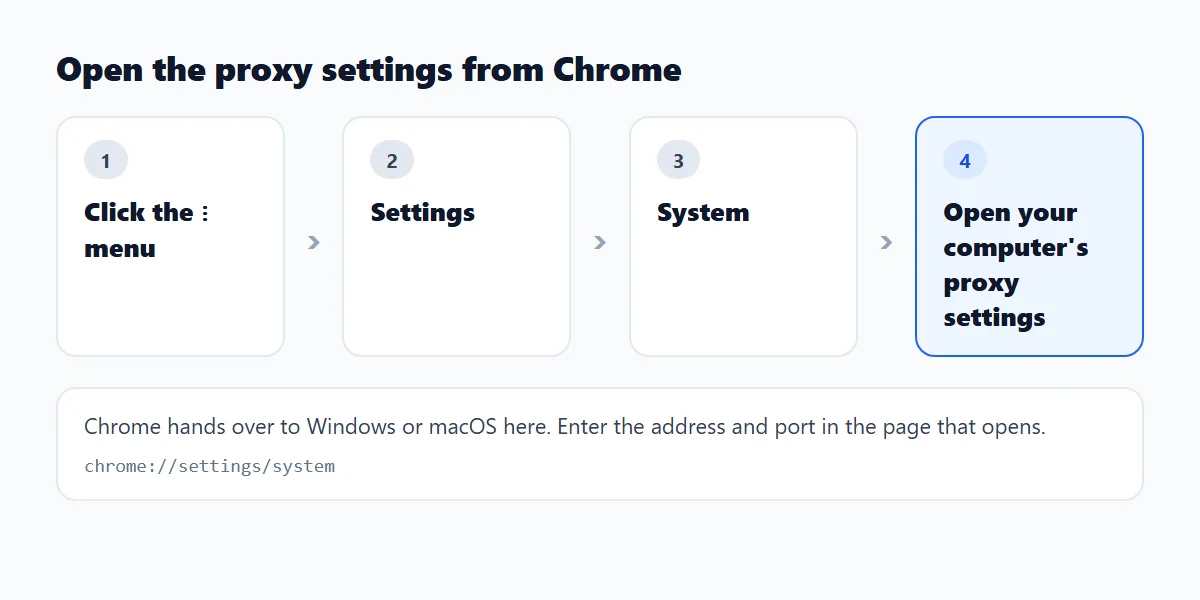
In Chrome open the menu, then Settings, then System, then "Open your computer's proxy settings". Chrome hands over to the operating system, so the exact page depends on your device. Other apps that follow the system setting will use the same proxy.
Windows 10 and Windows 11
- Open Settings, then Network and internet, then Proxy.
- Under Manual proxy setup, turn on "Use a proxy server". On Windows 11 click Set up next to it first.
- Enter the address and port, then Save.
macOS
- Open System Settings, then Network, pick your connection and click Details, then Proxies.
- Turn on the protocol your proxy uses (Web Proxy for HTTP, Secure Web Proxy for HTTPS or SOCKS Proxy).
- Enter the server and port, add the login if required, and click OK.
Linux
Chrome follows the desktop proxy setting. On GNOME open Settings, then Network, then Network Proxy, choose Manual and enter the details. Other desktops have an equivalent network or proxy page.
ChromeOS (Chromebook)
Open Settings, then Network, select your connection and open its proxy section to enter a manual proxy. Managed Chromebooks may lock this page and take the proxy from the administrator.
Android
Chrome on Android uses the proxy of the Wi-Fi network. Open the network details, edit it, and set the proxy to Manual with the host and port.
Option 2: launch Chrome with the --proxy-server flag
Start Chrome with --proxy-server and only that instance uses the proxy. Close every Chrome window first: if Chrome is already running, the flag is ignored because the running instance is reused. The address below is a placeholder.
To confirm Chrome picked it up, open chrome://version and look for the flag on the Command Line row. You can add --proxy-bypass-list to skip the proxy for some hosts, and --user-data-dir to keep this window in a separate profile. The flag cannot carry a username and password; Chrome shows a login prompt for an HTTP proxy that needs one.
# Windows
"C:\Program Files\Google\Chrome\Application\chrome.exe" --proxy-server="http://203.0.113.10:8080"

# macOS
open -na "Google Chrome" --args --proxy-server="http://203.0.113.10:8080"

# Linux
google-chrome --proxy-server="http://203.0.113.10:8080"
Option 3: use a proxy extension
A proxy extension changes the proxy for Chrome only, and you switch from the toolbar instead of editing settings. Only one extension can control the proxy at a time. If another extension is in charge, Chrome usually shows a note naming it on the System settings page; disable the other one first.
For rules and your own proxy list, rule-based managers such as ZeroOmega and FoxyProxy are the usual choice; the SwitchyOmega alternatives guide compares them. Axio Proxy is simpler: sign in with your AxioAPI account, choose one of the locations offered, connect, and change the IP from the toolbar. It does not manage proxies that you bring yourself.
How to check that your Chrome proxy works
- Open an IP lookup page such as ipinfo.io before connecting and note the address and country.
- Connect and reload the page. The address, and usually the country, should change.
- Check WebRTC separately, because a proxy does not always hide your address from it. See the WebRTC leak guide.
- Disconnect when you are done and confirm your original address comes back.
How to turn the proxy off
Reverse the method you used: switch off "Use a proxy server" (Windows), set the proxy to Off (macOS), restart Chrome without the flag, or disconnect in the extension. If the proxy stays on after you disabled it, another extension or a managed policy is likely controlling it.
Fix common Chrome proxy errors
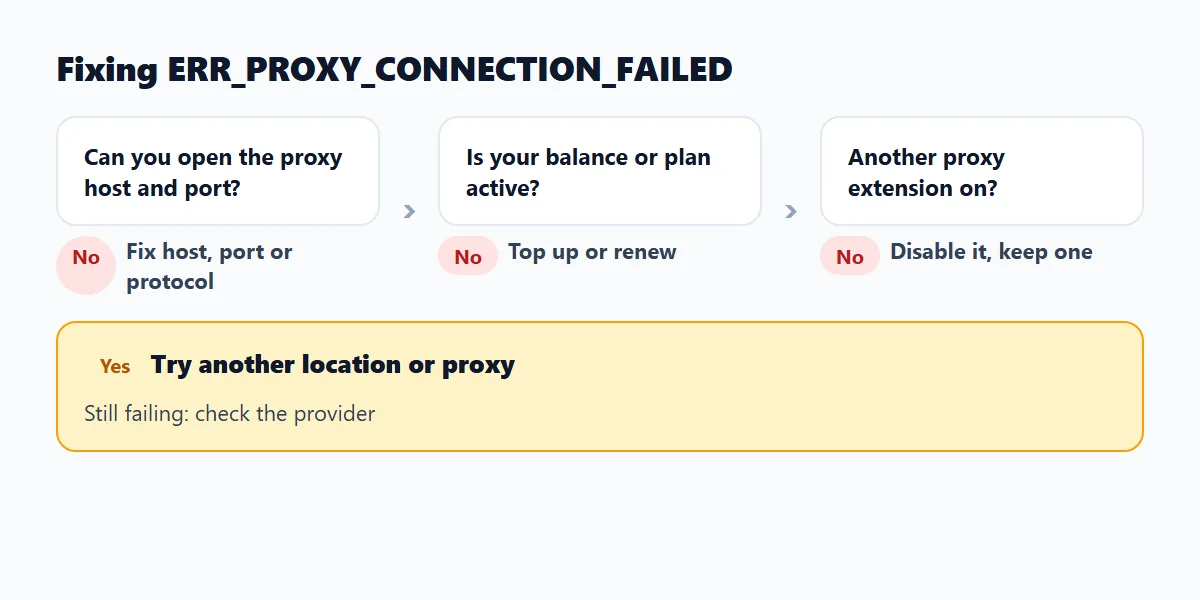
Most proxy errors come from a wrong address, an expired plan, a protocol mismatch or two things fighting for control.
| Message | Usual cause | What to try |
|---|---|---|
| ERR_PROXY_CONNECTION_FAILED | Chrome cannot reach the proxy host or port | Check the host and port, your balance or plan, then try another location |
| ERR_TUNNEL_CONNECTION_FAILED | The proxy refused to open an HTTPS tunnel | Check the protocol and credentials; try another endpoint |
| 407 Proxy Authentication Required | Missing or wrong username or password | Enter the correct login; SOCKS5 with a login is not supported by Chrome settings |
| Setting greyed out or reverts | A managed policy or another extension controls the proxy | Disable the other extension; ask your administrator if the device is managed |
Use a different proxy in each Chrome profile
The system setting is global, so it cannot give two Chrome windows two different proxies. The launch flag can: start each window with its own --user-data-dir (a separate profile folder) and its own --proxy-server. Each window keeps its own cookies, extensions and login state, which is also useful for testing.
# One window per proxy, each in its own profile folder (Windows)
"C:\Program Files\Google\Chrome\Application\chrome.exe" --user-data-dir="C:\chrome-profiles\work" --proxy-server="http://203.0.113.10:8080"
"C:\Program Files\Google\Chrome\Application\chrome.exe" --user-data-dir="C:\chrome-profiles	est" --proxy-server="http://203.0.113.20:8080"
Which proxy should you use with Chrome?
It depends on the job. Datacenter proxies are fast and cheap for testing and checking pages; residential proxies look like home connections and suit location-sensitive checks. For a whole session on one site use a sticky session, and for many independent requests use a rotating one; the sticky vs rotating proxy guide explains the difference. You can see what AxioAPI offers on the proxy API page and on the pricing page.
Use a proxy only where the law and the website's terms allow it.
Frequently asked questions
How do I set my proxy settings in Chrome?
Open Chrome Settings, then System, then "Open your computer's proxy settings", and enter the address and port in the page your operating system shows. You can also start Chrome with the --proxy-server flag or install a proxy extension.
How do I fix a proxy error in Chrome?
Check the proxy host and port, make sure your plan or balance is active, disable any other proxy extension, and try another location or endpoint. ERR_PROXY_CONNECTION_FAILED means Chrome cannot reach the proxy.
How do I find my browser proxy settings?
In Chrome go to Settings, then System, and open the proxy settings link. To see whether an extension controls the proxy, check the same page and the Extensions menu. chrome://version shows any --proxy-server flag.
What is a proxy server in Chrome?
A proxy server sits between Chrome and the website and forwards your requests, so the site sees the proxy address instead of yours. Chrome can use the system proxy, a launch flag or an extension.
Is a proxy server illegal?
Using a proxy is legal in most places. What matters is what you do through it: follow the law, your network rules and the terms of the websites you visit.
Which proxy is best for Chrome?
There is no single best one. Choose the type by the job (datacenter for speed and testing, residential for location-sensitive checks) and avoid free public proxies for anything private.
Sources
Related guides
- WebRTC leak in Chrome: how to test and fix it when you use a proxyTest for a WebRTC leak with a short console script and see which Chrome setting stops it.
- SwitchyOmega alternatives for Chrome: ZeroOmega, FoxyProxy and moreRules and your own proxies, or one-click locations from an account: how to choose, with a PAC example.
- Sticky vs rotating proxy: which one to useWhen to keep one IP and when to change it, with a session lifecycle you can script.